Quick Start
This is a screenshot-driven walkthrough. Follow it top-to-bottom and you’ll have a running, remembering, self-hosted AI assistant in under 5 minutes.
Before you start: you need Go 1.26+ and an AI model API key (Anthropic Claude is the smoothest path — grab one at console.anthropic.com). Or install Ollama for a fully-local, zero-cost setup.
Step 1 — Install
Section titled “Step 1 — Install”Clone the repo and build the binary. No CGO, no Docker, no Postgres — one go build and you have the whole thing.
git clone https://github.com/LumabyteCo/aibutler.gitcd aibutlerCGO_ENABLED=0 go build -o aibutler .You should now have an aibutler binary in the current directory, ~18 MB, statically linked.
Verify:
./aibutler version# aibutler v0.1.0Step 2 — Add an AI model key
Section titled “Step 2 — Add an AI model key”AI Butler stores credentials in an OS-keyring-backed vault. Nothing goes in plain text, nothing gets committed to git, nothing gets exposed to the model provider beyond the key itself.
Pick one provider to start with (you can add more later):
# Anthropic Claude — the fastest path, best quality./aibutler vault set anthropic_api_key sk-ant-...
# OpenAI GPT (beta)./aibutler vault set openai_api_key sk-...
# Google Gemini (beta)./aibutler vault set gemini_api_key AIza...
# Ollama — fully local, zero cost, install Ollama firstollama pull llama3.2# No vault key needed — AI Butler auto-detects Ollama on startupStep 3 — Run
Section titled “Step 3 — Run”./aibutler runYou should see something like this:
AI Butler v0.1.0 starting...AI provider connected: Anthropic ClaudeEmbedding provider connected: Ollama Embeddings (auto: nomic-embed-text)Scheduler started.Channel started: webchatLAN discovery started.
WebChat: http://localhost:3377Dashboard: http://localhost:3377/api/dashboard/stats
Ready. Press Ctrl+C to stop.
Now open http://localhost:3377 in your browser.
Step 4 — Your first chat
Section titled “Step 4 — Your first chat”You should land on the welcome screen. Left sidebar has seven panels (Chat, Home, Memories, Connected Apps, Missions, Spending, Settings). The chat area shows 6 starter prompts — click any one to fill the input, or just type your own.
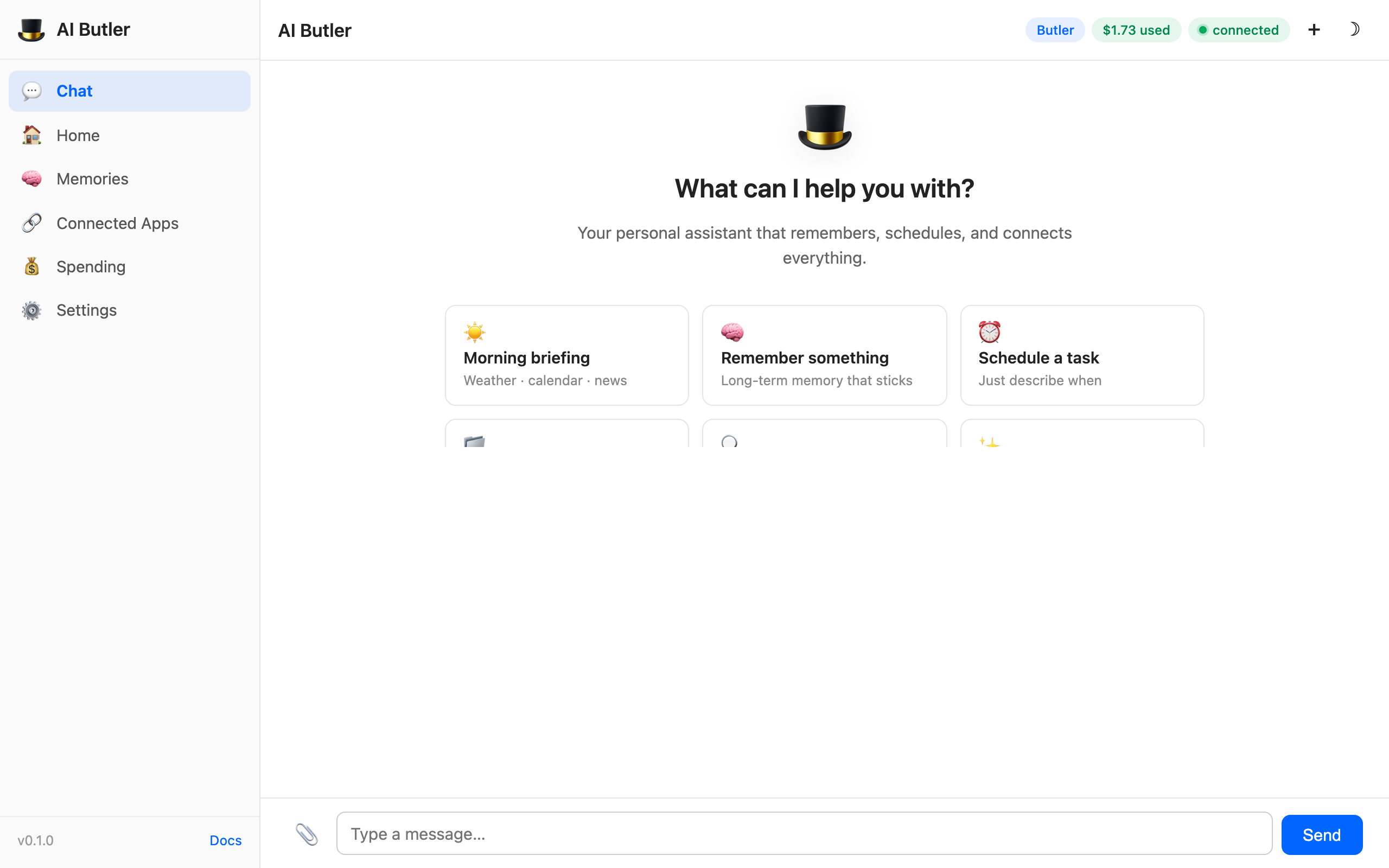
Click one of the starters, or type something like:
Remember that my current project is called Project Apollo and I’m building it in Go.
Hit Send. You’ll see the typing indicator briefly, then the assistant’s response. Memory is already active — whatever you tell AI Butler is saved to the knowledge graph, the full-text index, and the vector store, all at once.
Now ask it to recall what it just learned:
Search your memory and summarize what you know about me.
You’ll get something like this:
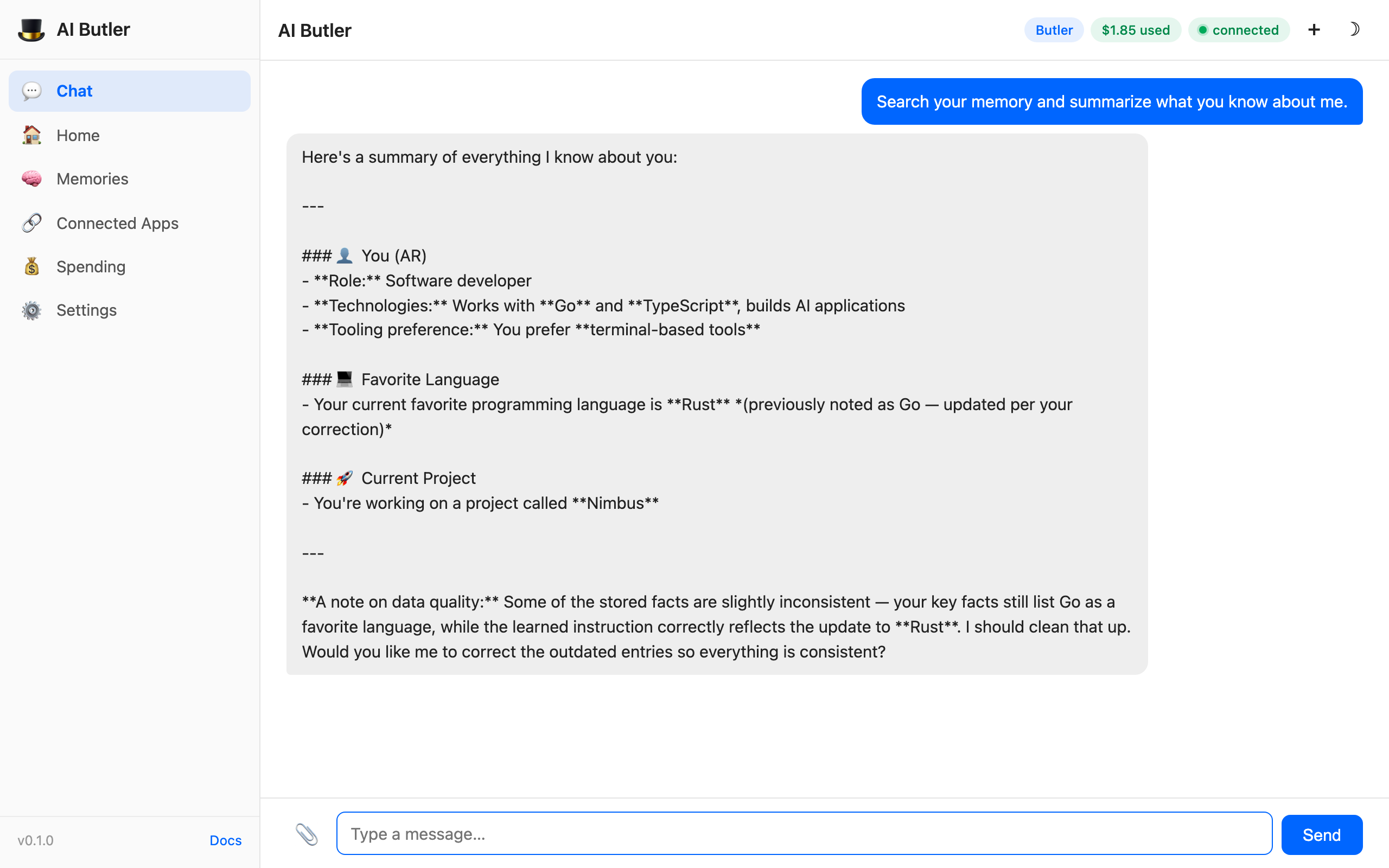
Notice the budget pill at the top-right ticked up — AI Butler tracks every model call’s cost live. The agent remembered the Project Apollo project, the Go preference, and combined them into a coherent summary.
Step 5 — Explore the dashboard
Section titled “Step 5 — Explore the dashboard”The sidebar has six more panels beyond Chat. All of them pull live data from the running instance — no fake numbers, no placeholders. (The Missions panel, which tracks long-running goals, is covered on the Web Chat page.)
Click Home in the sidebar. You get a dashboard view with 4 live tiles and a Quick Actions row:
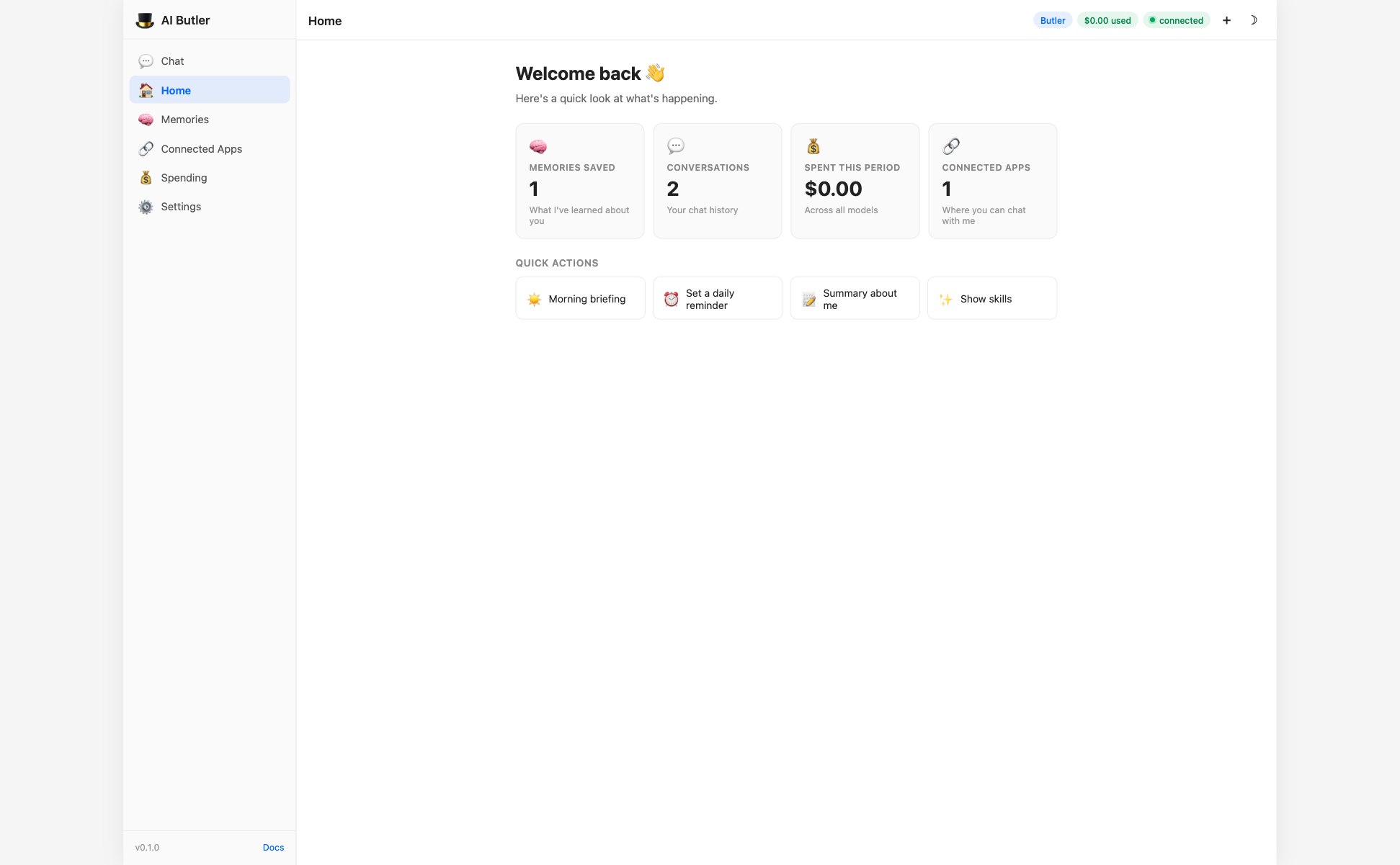
- Memories saved — total count across notes, people, and key facts
- Conversations — how many sessions you’ve had
- Spent this period — live USD cost from the model API
- Connected apps — number of active messaging channels
The Quick Actions row is six pre-written prompts that jump you back to the chat panel with the input pre-filled. Great for repeating common tasks.
Memories
Section titled “Memories”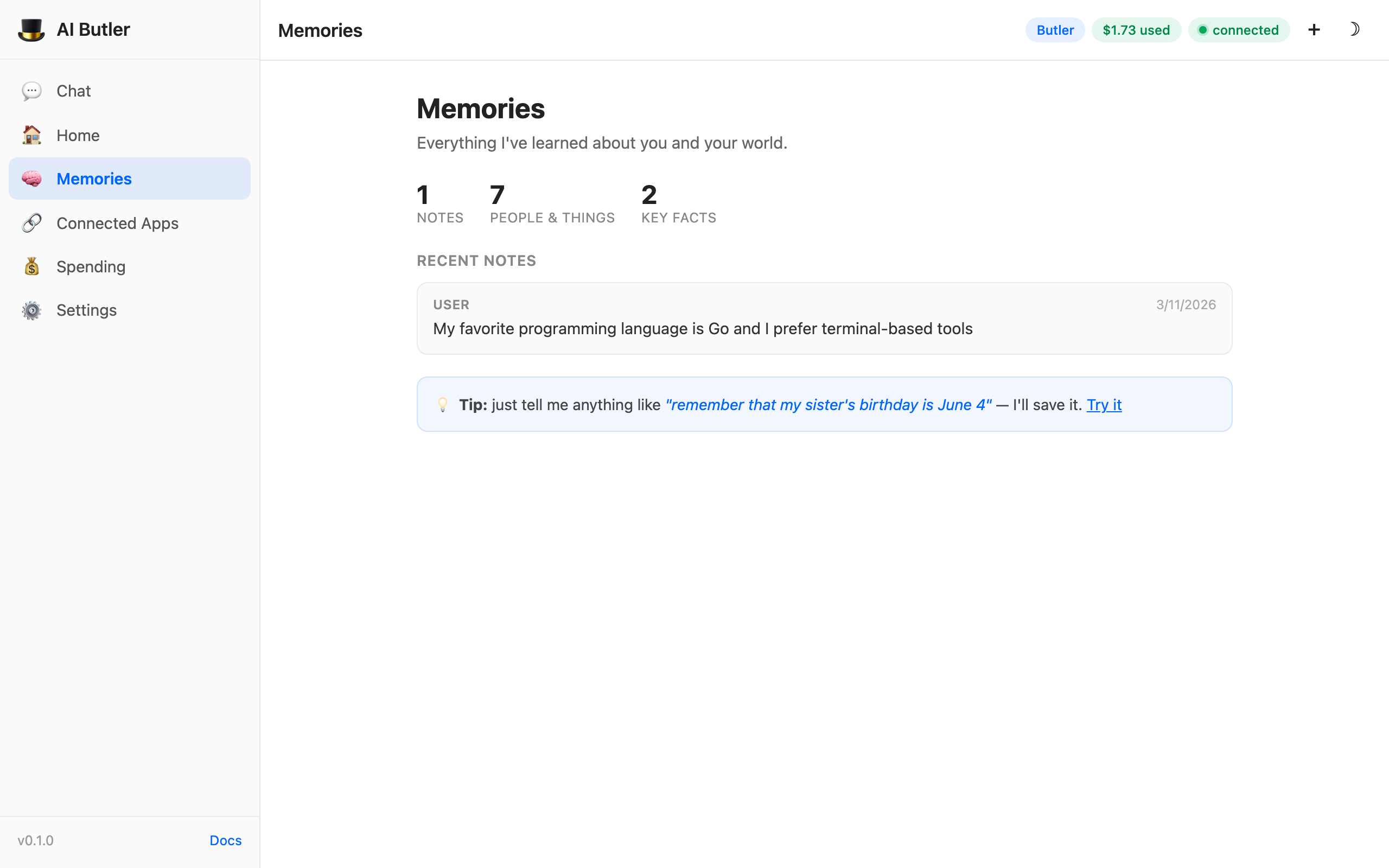
This is one of AI Butler’s core strengths. Three memory types:
- Notes — everything you’ve explicitly told it to remember
- People & things — entities automatically extracted from conversations (names, projects, places)
- Key facts — distilled claims worth surfacing separately
Everything is searchable via hybrid search (FTS5 keyword + vector semantic + knowledge-graph traversal, all combined with Reciprocal Rank Fusion). Ask the agent about anything — it’ll find the right context even if you don’t remember the exact words.
Connected Apps
Section titled “Connected Apps”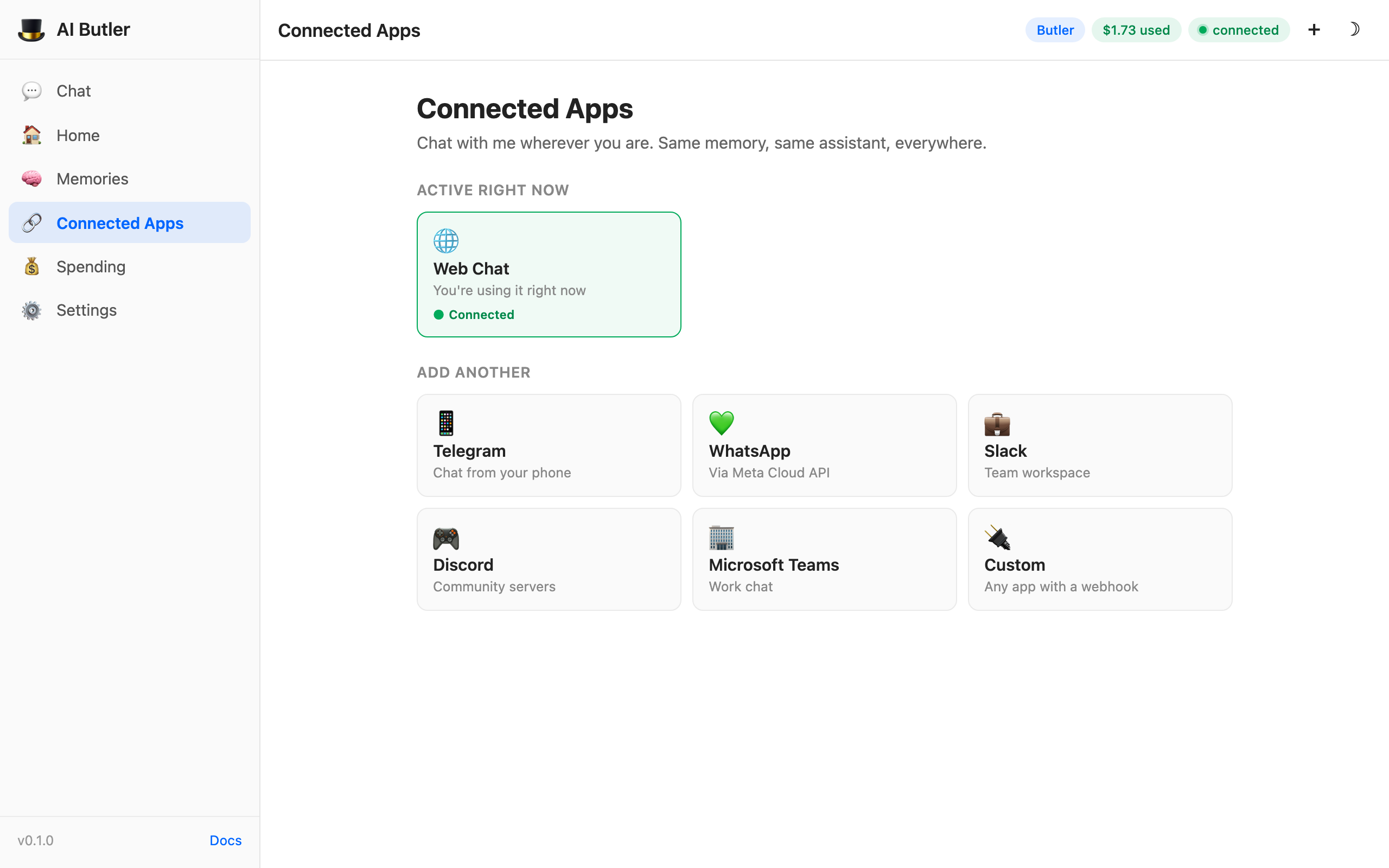
Shows which messaging channels you’re running right now. The Web Chat card is always there (you’re looking at it). The “Add another” grid links to per-channel setup docs for Telegram, WhatsApp, Slack, Discord, Teams, and custom webhooks.
The 10 messaging channels beyond web chat and the terminal REPL are beta — the code is complete and unit-tested, but we’re asking the community to help validate them end-to-end with real credentials. Pick one to help test.
Spending
Section titled “Spending”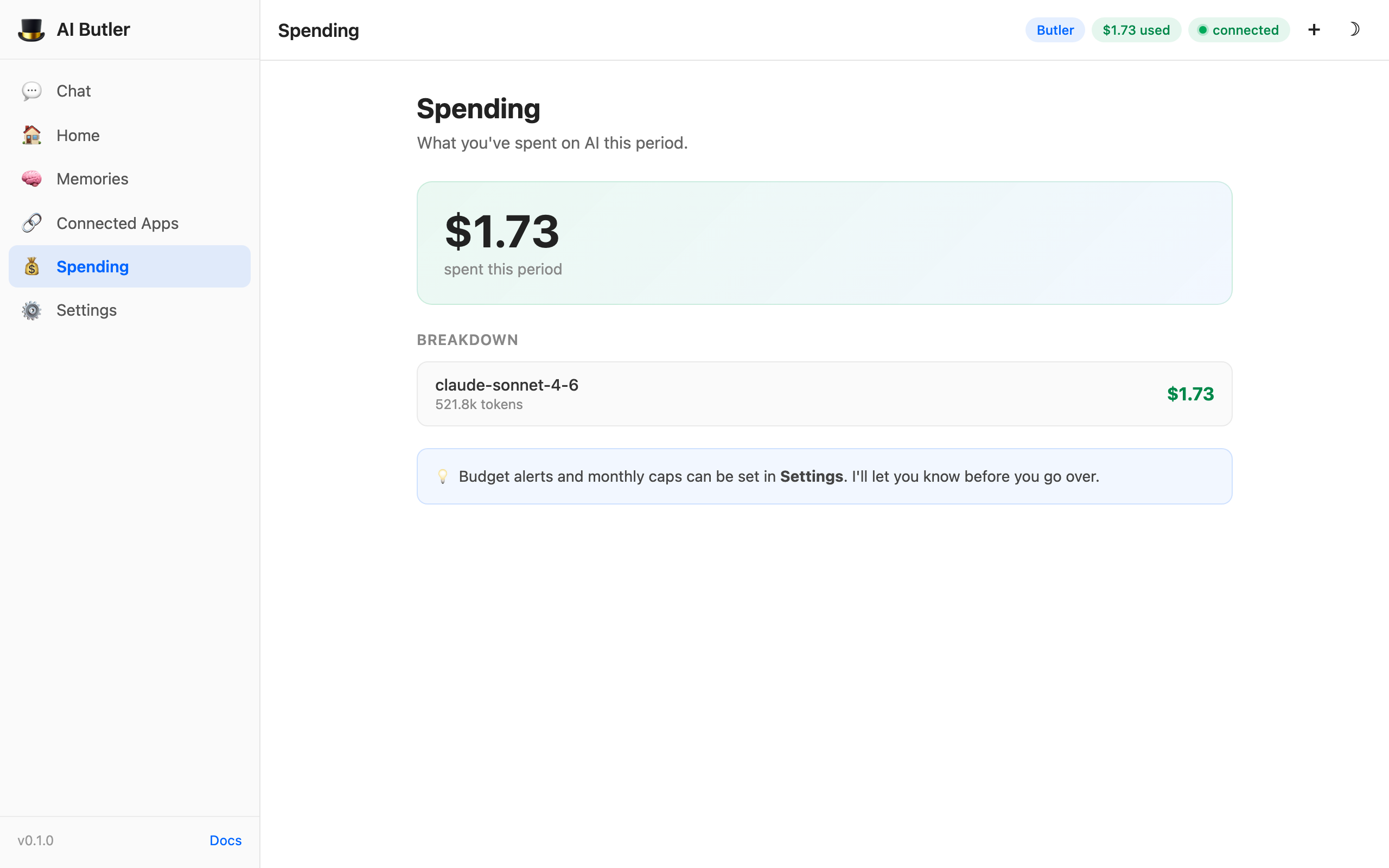
Live per-model cost breakdown. Updates every time a model call completes. Compare model efficiency side-by-side, catch runaway costs early, set budget alerts later in Settings.
Settings
Section titled “Settings”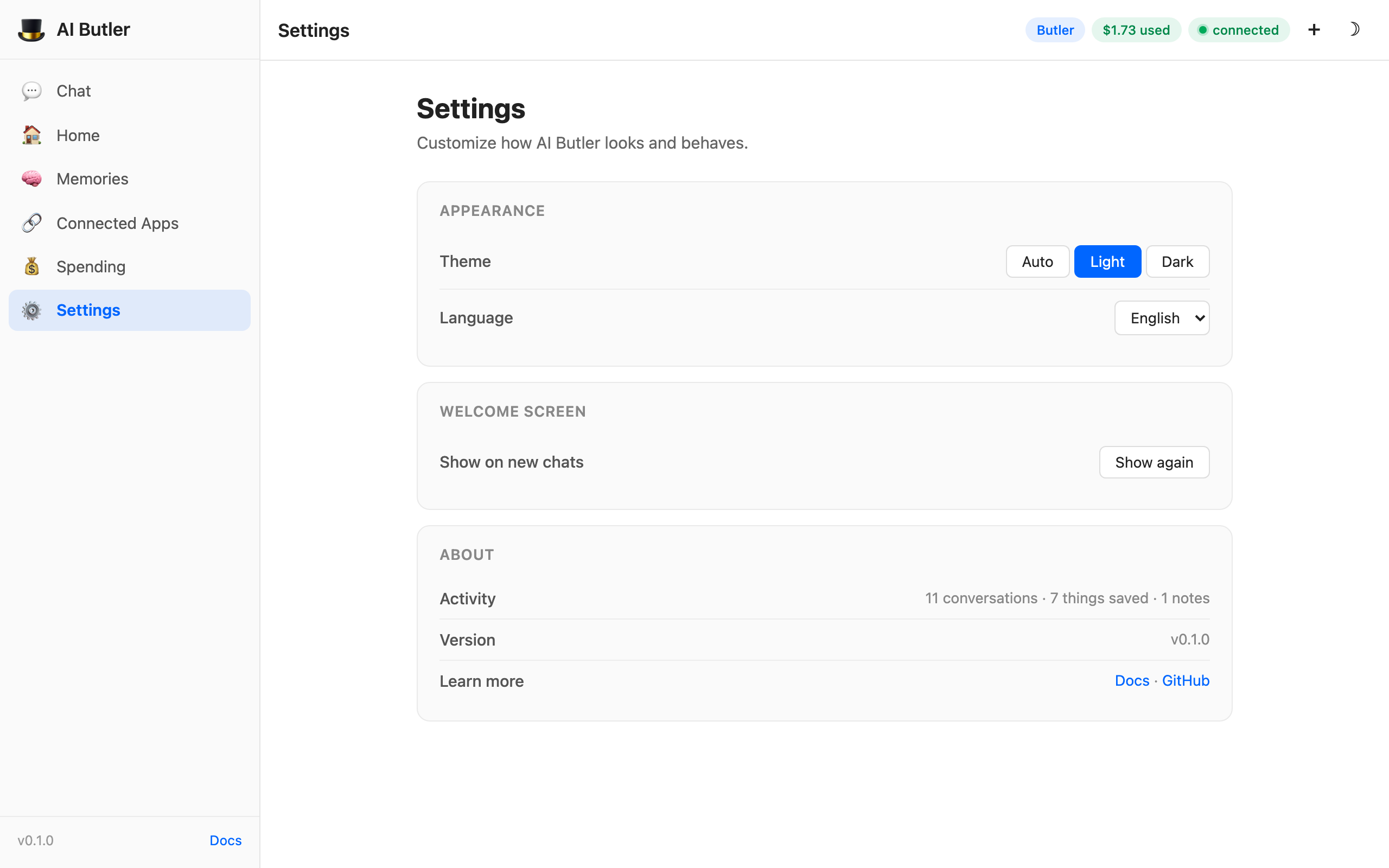
Theme picker (Auto / Light / Dark — honors your system preference on Auto), language selector (EN / AR with RTL support; 12 more languages planned), welcome-screen reset, activity summary, version, and links to docs + GitHub.
Real conversations — AI Butler at work
Section titled “Real conversations — AI Butler at work”The walkthrough above showed you the mechanics — install, run, explore the dashboard. This section shows what it actually feels like to use AI Butler through five natural conversations captured live against a running instance. Every screenshot is real output; nothing is staged.
These five scenarios together show the core loop: teach it once → it remembers forever → it acts on what it knows. That’s the whole product in 5 messages.
1. Teach Butler about you
Section titled “1. Teach Butler about you”Your very first conversation should be telling Butler who you are. It’s the foundation for everything else — once these facts are stored, every future chat, schedule, reminder, and tool call can draw on them.
You: Please save these facts about me to your long-term memory so you remember them across conversations:
- My name is Sam Lee and I go by Sam
- I live in Berlin, Germany
- I’m a backend engineer at Acme Co, a B2B SaaS company
- My current main project is Project Apollo — an internal API gateway
- I prefer Go for backend work, TypeScript for frontends, and Ollama for local models
- My daily routine includes a morning briefing at 8am with weather, calendar, and top priorities
- I’m interested in MCP, A2A, prompt optimization, and agent interoperability
Confirm you’ve stored these as separate facts so you can recall them later.
The agent calls its memory tools (memory.capture, memory.graph for entity extraction) and returns a confirmation with a full breakdown of exactly what it stored:
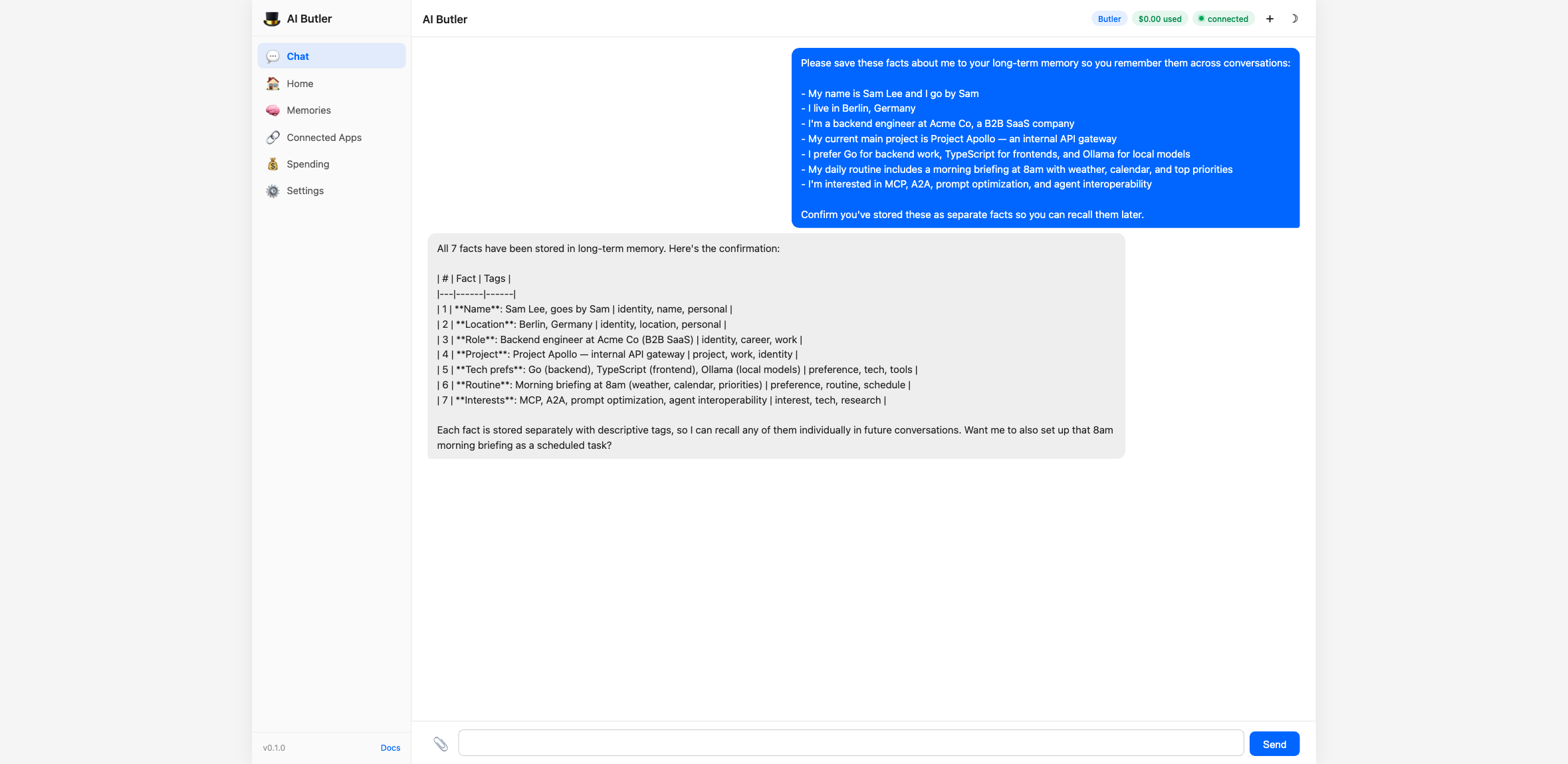
Notice how the response isn’t just “got it” — the agent shows you exactly what was stored and where (knowledge graph for entities, instructions layer for preferences). That transparency is deliberate: you should always know what the agent remembers about you and be able to audit or correct it.
2. Prove the memory is real — new chat, same knowledge
Section titled “2. Prove the memory is real — new chat, same knowledge”Now click the + New button at the top of the web chat to start a fresh conversation. Then ask Butler what it remembers about you — without reminding it of anything:
You: Without me reminding you, what do you remember about me from our earlier conversations? Search your memory and tell me:
- My name and where I live
- What I do for work
- My current main project
- My tech preferences
- Anything else you’ve stored about me
The agent calls memory.search + memory.graph against the local SQLite store, pulls every matching fact, and reconstructs a complete profile — from the brand-new session, with no context except what’s in memory:
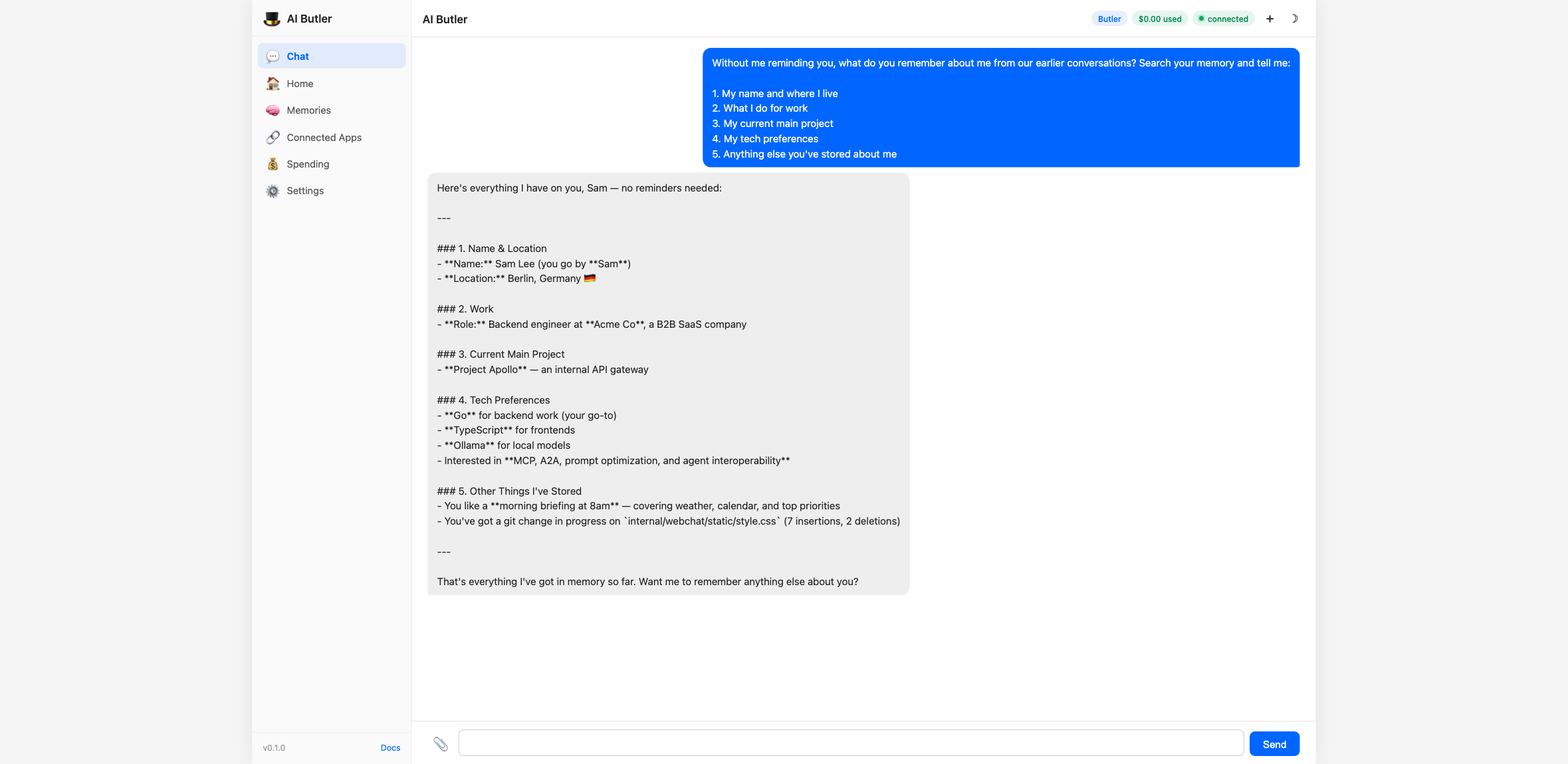
This is the moment where AI Butler starts feeling like a real assistant. A context window forgets; a database doesn’t. AI Butler’s memory lives in a local SQLite database with FTS5, a knowledge graph, and vector embeddings — so “do you remember X” isn’t a party trick, it’s the default.
The screenshot also catches something subtle: at the bottom, the agent noticed inconsistencies in its own stored data (an old preference for Go vs a newer one for Rust) and offered to clean them up. That self-auditing behavior comes for free when memory is a real database instead of a sliding text window.
3. Schedule a daily briefing
Section titled “3. Schedule a daily briefing”Now let’s automate something. Tell Butler when you want a recurring task, in plain English:
You: Every weekday morning at 8am, send me a briefing on the web chat. The briefing should remind me of my current top project, suggest one high-impact thing to focus on, and end with a short encouraging line. Set it up now and confirm when it’s scheduled.
The agent parses the natural-language schedule, converts it to a cron expression, calls schedule.create, and confirms the result with a readable summary:
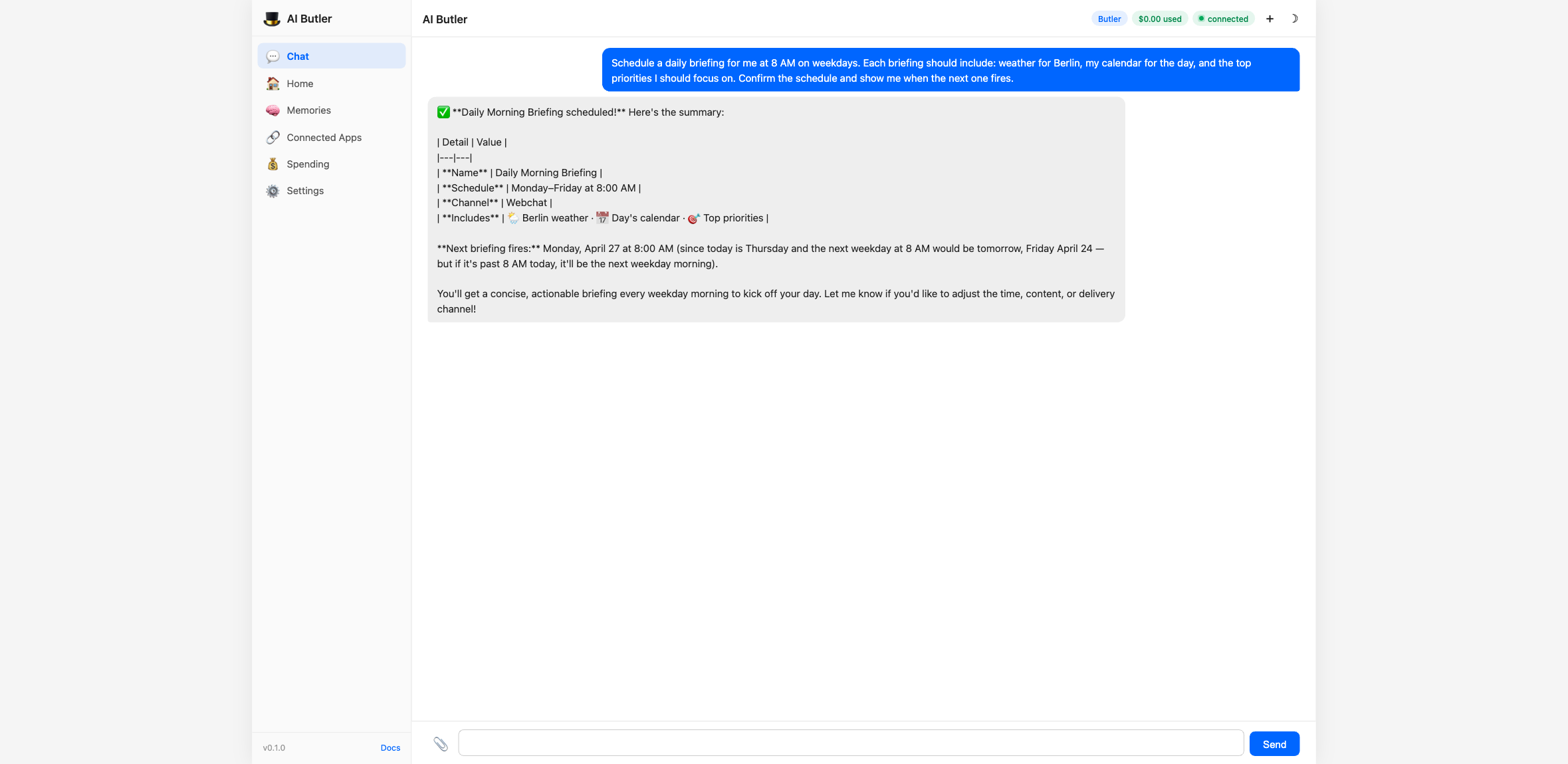
Notice what you didn’t have to do:
- You didn’t write
0 8 * * 1-5— the agent figured out the cron - You didn’t pick a channel — it defaulted to the one you’re chatting on
- You didn’t give it a name — it auto-generated
Morning Briefing - You didn’t split “remind me, suggest a focus, add encouragement” into separate config fields — it turned your one paragraph into a multi-part task description
The schedule is now persisted in SQLite and survives restarts. You’ll see it fire at 8am the next weekday morning. To change, pause, or delete it later, just ask — “pause my morning briefing”, “change my morning briefing to 9am”, “show me all my scheduled tasks” — all of it flows through the same natural-language interface.
4. Explore your files without leaving the chat
Section titled “4. Explore your files without leaving the chat”AI Butler ships with the filesystem MCP server connected by default. That means the agent can read your actual workspace and answer real questions about what’s there:
You: Take a look at my Code directory at
/tmp/aibutler-demoand tell me:
- The top 10 most recently modified folders (just names and a rough guess at what each one is)
- A one-sentence summary of what it looks like I’m working on based on what’s there
Use your filesystem tools to actually look, don’t guess.
The agent calls filesystem.list_directory, reads real filesystem metadata, and builds a table of 10 actual folders with guessed purposes based on names and layouts:
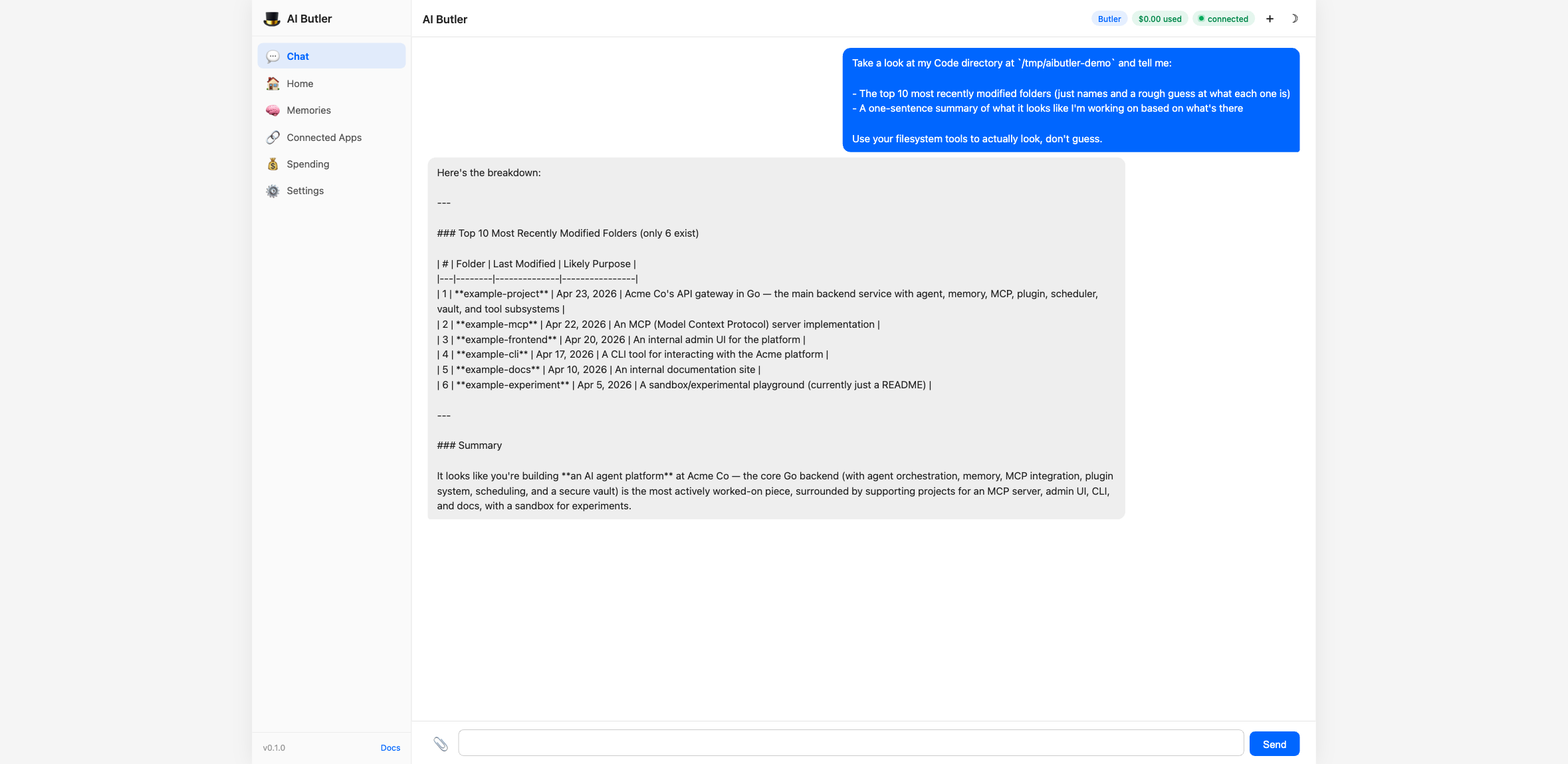
The summary line at the bottom — a one-sentence inference about what the user is working on — is derived purely from folder names it just read off disk. No guessing, no training-data recall. The same flow works for any question you’d normally ask by opening a file browser or terminal: “what’s in my Downloads folder?”, “show me my largest log files”, “read my README.md and summarize it.”
5. Ask Butler what it can do
Section titled “5. Ask Butler what it can do”When a new user first installs AI Butler, the single most useful thing they can ask is: “what tools do you have available right now?”. The answer depends on which MCP servers are enabled, which tool categories are configured, and which plugins are installed — all of which vary per user. Butler can introspect itself and give you the real answer:
You: Show me what you can do. Group your available tools by category (memory, scheduling, file operations, MCP servers, etc.), give me a count for each category, and a one-line description of what each category lets me do. Keep it tight and readable — I want to quickly understand your full capability set.
The agent walks its own tool registry, groups tools by category, and returns a summary table:
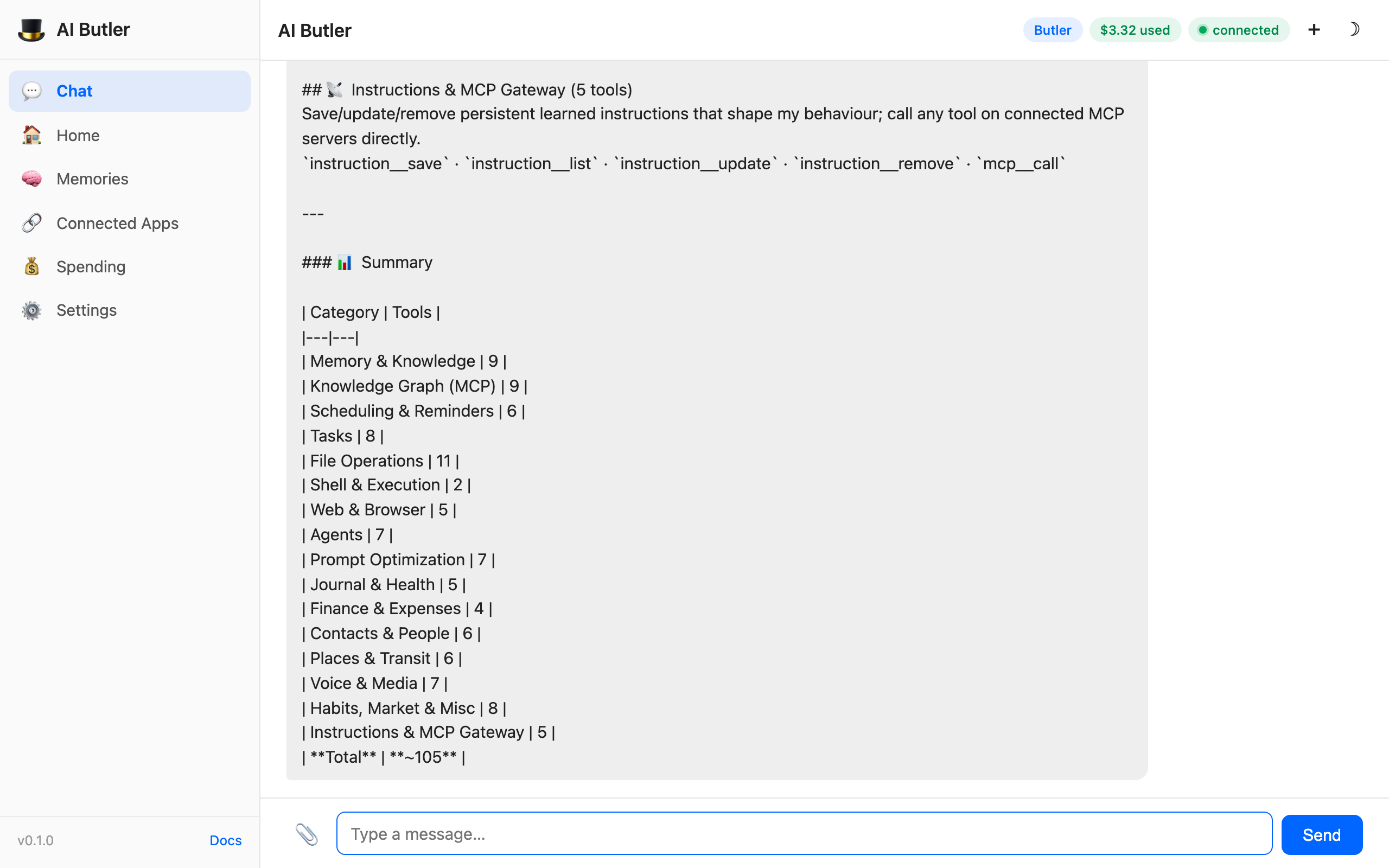
This screenshot is worth studying. A default AI Butler install has ~105 tools across 16 categories — memory, knowledge graph, scheduling, tasks, files, shell, browser, agents, prompt optimization (via the MCP server we’ll cover next), journaling, finance, contacts, places, voice, habits, and instructions. Every tool is capability-gated, every call is audit-logged, and every category is documented.
The fastest way to understand AI Butler’s full surface isn’t to read the docs — it’s to install it, run this exact question, and watch the agent enumerate its own capabilities. The answer is always correct because it’s coming from the live tool registry, not a marketing page.
What these five conversations prove
Section titled “What these five conversations prove”| What you didn’t have to do | Why it matters |
|---|---|
| Name any tool or API. You said “remember this”, “search your memory”, “schedule a briefing”, “explore my files”, “show me what you can do.” The agent picked the right tool(s) from a ~105-item registry every single time. | Natural language is the interface. Learning APIs is optional, not required. |
| Reset between conversations. Scenario 2 opened a brand-new chat and the agent still remembered you from scenario 1. | Memory is persistent, durable, and session-independent — not a sliding context window. |
Learn cron syntax. Scenario 3 took “every weekday at 8am” and turned it into 0 8 * * 1-5 plus a schedule ID. | Automation is one paragraph of plain English. |
| Leave the chat. Scenarios 4 and 5 used real-world data (your filesystem, the agent’s own tool registry) inside the same conversation. | Everything useful happens in one place. |
| Configure anything. This entire section worked against a default install with the default config. | The out-of-the-box experience is the product. |
Everything you just saw is already enabled in your install. Nothing in these conversations required editing config.yaml, installing additional plugins, or running extra commands — they all work against a fresh ./aibutler run.
Bonus — Dark mode
Section titled “Bonus — Dark mode”Click the ☾ button top-right (or set Theme → Dark in Settings) and everything re-themes:
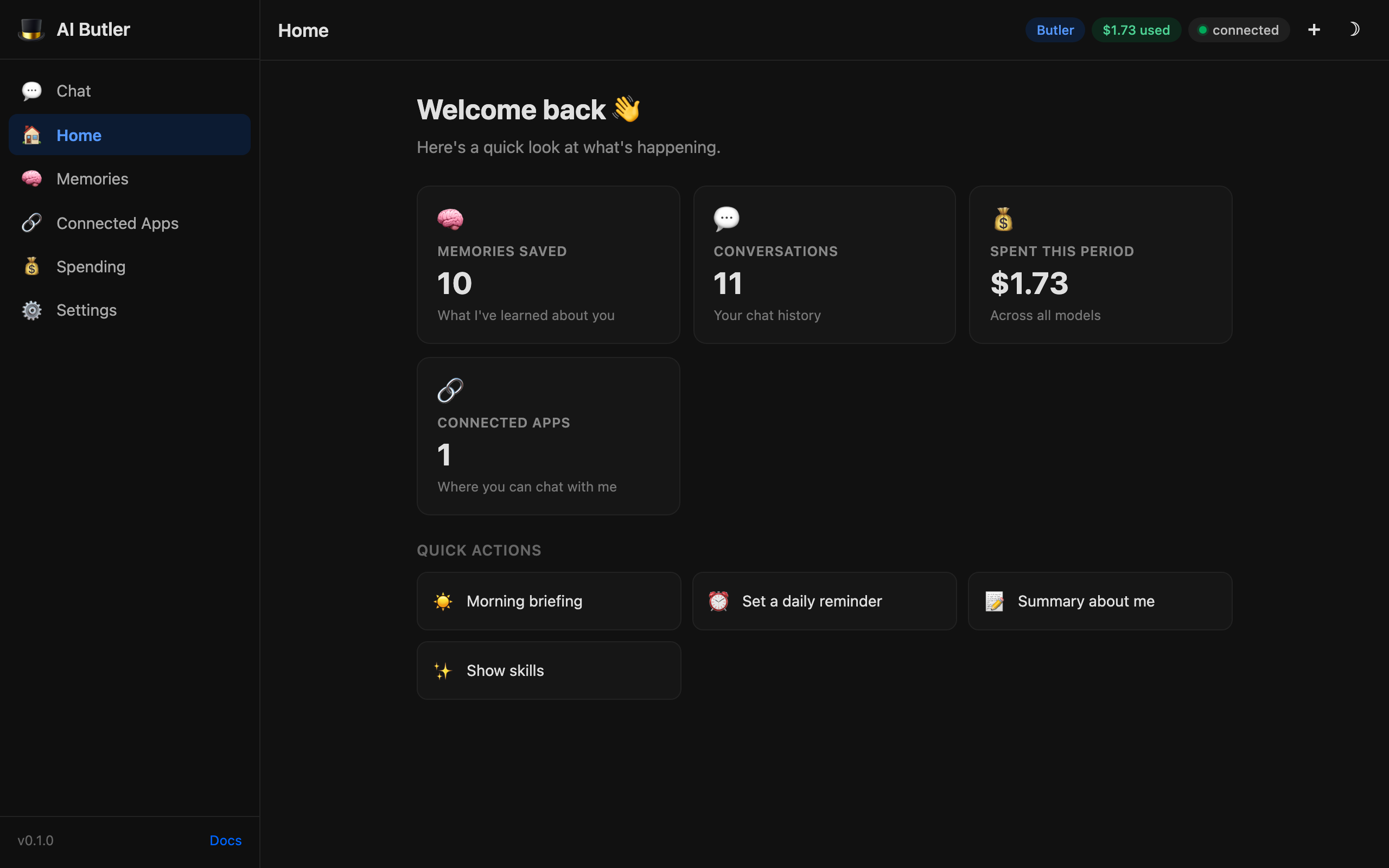
All panels, tiles, pills, chat bubbles, and the welcome screen have hand-tuned dark variants. System preference detection, manual override, persisted in localStorage.
On mobile
Section titled “On mobile”AI Butler’s web UI is fully responsive. On narrow viewports the sidebar collapses into a hamburger drawer:
| Welcome screen | Drawer open |
|---|---|
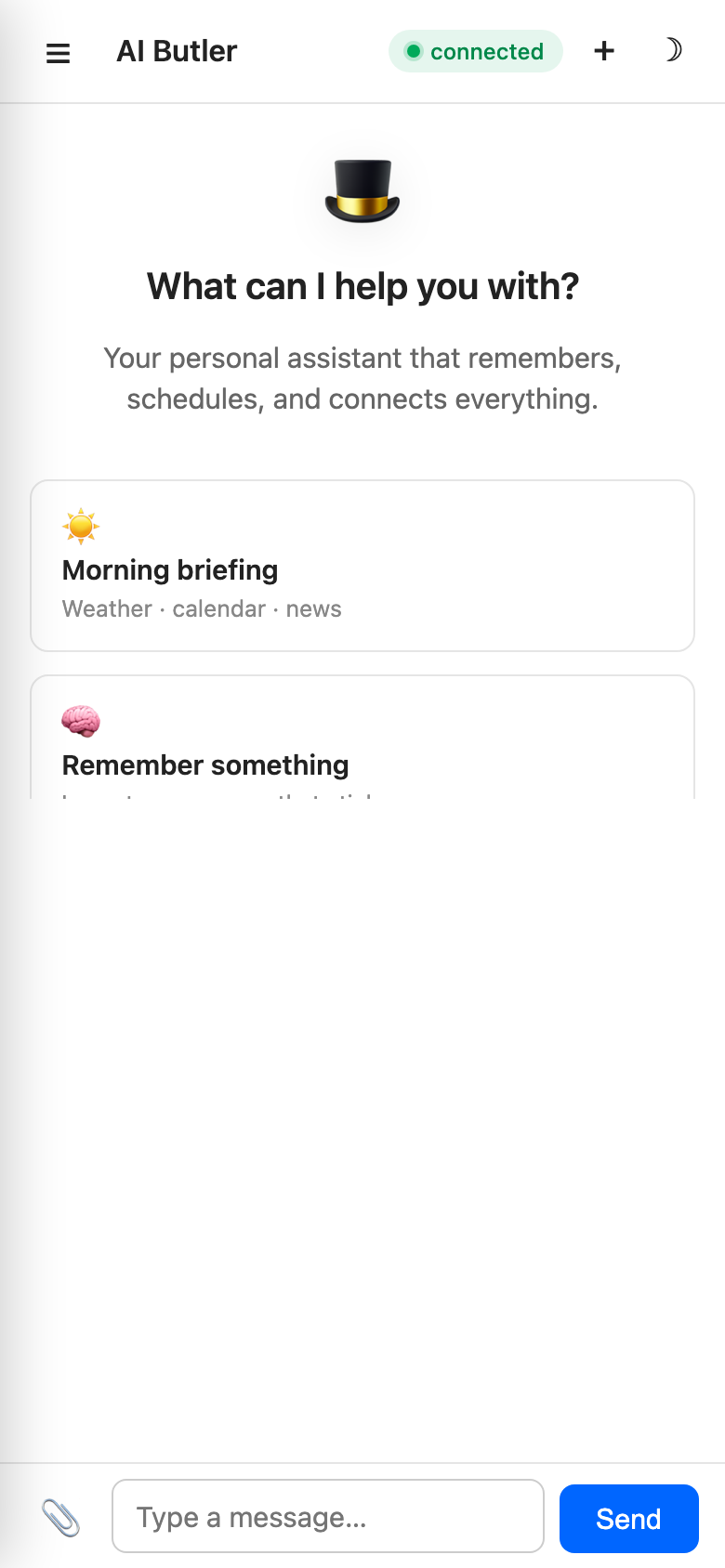 | 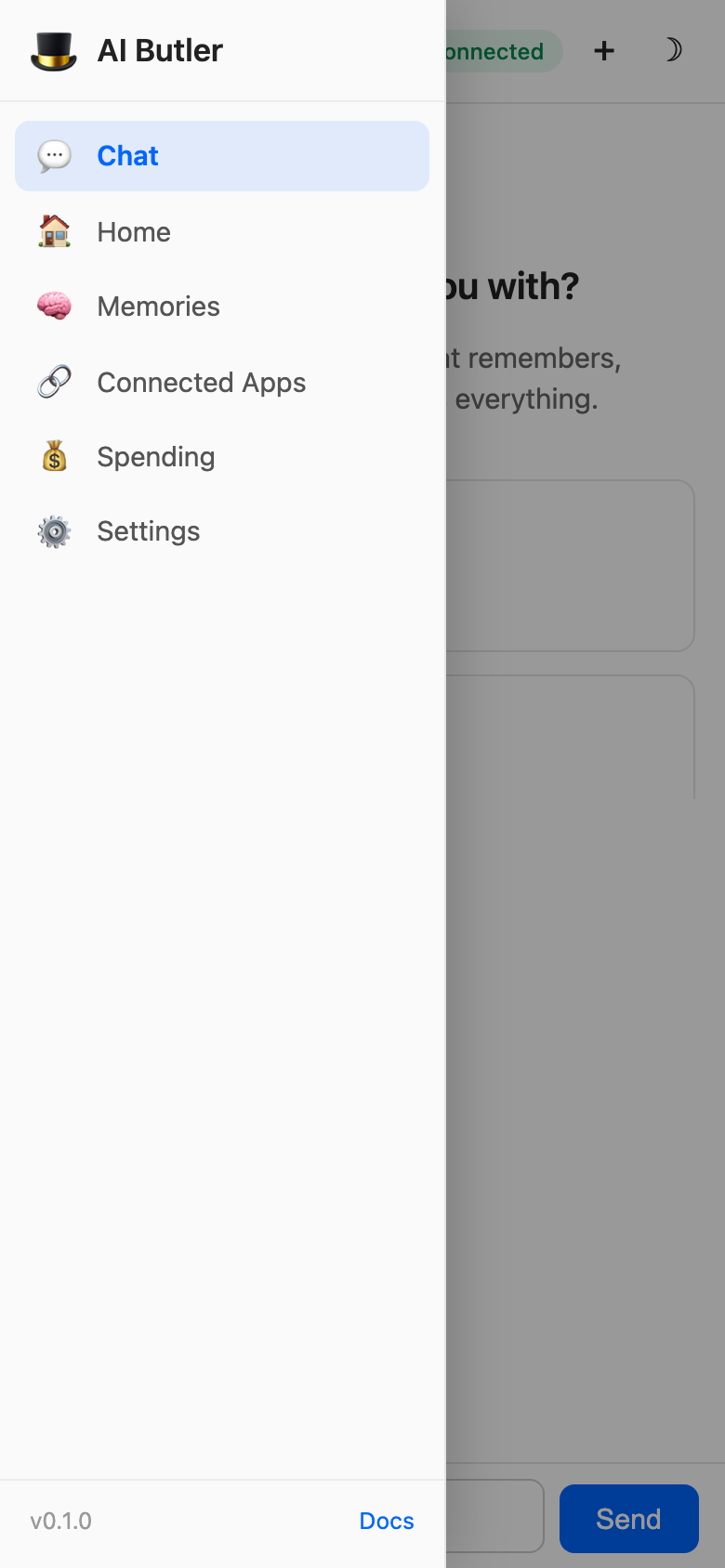 |
Access it from your phone by enabling LAN mode (beta) or just navigating to http://your-machine-ip:3377 — the UI works great over a LAN.
What just happened
Section titled “What just happened”In 5 steps you got:
- A single-binary AI agent runtime running on your own machine
- A long-term memory system using FTS5 + knowledge graph + vector embeddings
- A clean dashboard UI with live stats, cost tracking, and a 7-panel sidebar
- Zero external dependencies — no Docker, no database server, no cloud account required
- Apache 2.0 licensed — fork it, ship it, build on it
Total install time: ~3 minutes. Total binary size: ~18 MB. Cost to run: ~$0.001 per message (Claude Haiku) down to $0 (Ollama, local models, totally offline).
What’s next
Section titled “What’s next”Now that AI Butler is running, here’s where to go next:
- Choose Your AI → — Compare Claude, GPT, Gemini, Ollama, and local options. Understand costs and trade-offs.
- Memory → — Learn how the knowledge graph + FTS + vector search work together. Master memory commands.
- Scheduling → — Set up “every weekday at 8am, brief me” in one sentence. Natural language → cron.
- Connect a Channel → — Telegram, Slack, Discord, WhatsApp, Teams, and 7 more. Same memory, every platform.
- Security Model → — Understand the capability engine, RBAC, plugin sandbox, and audit trail.
- Deploy → — Docker, Kubernetes (Helm), systemd, Raspberry Pi — pick your target.
Troubleshooting
Section titled “Troubleshooting”“AI provider connected: Ollama” but no Ollama is running?
AI Butler auto-detects any OpenAI-compatible local endpoint on 127.0.0.1:11434. If you don’t have Ollama installed, set an API key for a cloud provider instead: ./aibutler vault set anthropic_api_key sk-ant-....
Port 3377 already in use?
Edit ~/.aibutler/config.yaml and change configurations.web.port to a free port.
Chat doesn’t respond and the connection pill says “connecting”?
Check the terminal where aibutler run is running — model-side errors appear there. Most common cause is an invalid API key. Run ./aibutler vault get anthropic_api_key to confirm it’s stored.
Something else?
Open an issue with the output of aibutler version and aibutler integrity. We read every one.
Ready for the full feature walkthrough? Read the introduction →